
 By Susan Werner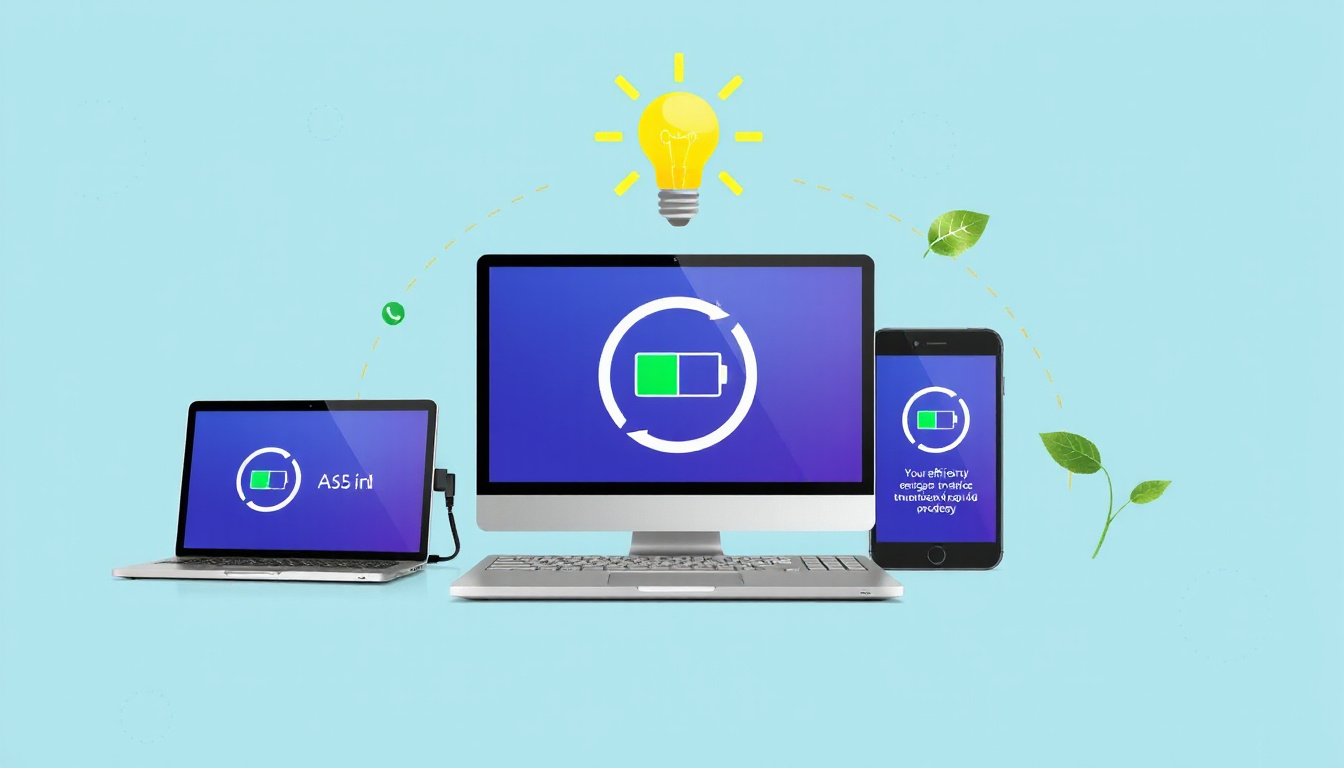
In today’s tech-driven world, where laptops, smartphones, and other portable devices play an integral role in our daily lives, managing power consumption effectively becomes crucial. Energy-saving mode is a built-in feature available on many devices, designed to help users maximize battery life and reduce energy usage without significantly sacrificing performance. Understanding how to use energy-saving mode when available can unlock greater efficiency, prolong device usability, and contribute toward environmental sustainability.
What is Energy-Saving Mode?
Energy-saving mode is a power management feature that automatically adjusts system settings and app behaviors to reduce energy consumption. On devices like Windows PCs, smartphones, and tablets, this mode modulates performance parameters, limits background activities, and adjusts screen brightness to optimize power use.
For example, Windows 11 includes an "Energy Saver" mode that supersedes the previous battery saver function. This mode is especially helpful when your battery is running low or when you want to extend device usage between charges. Notably, energy-saving mode can usually be activated manually or configured to turn on automatically based on battery levels or whether the device is plugged in.
How Energy-Saving Mode Works
When enabled, energy-saving mode typically implements several adjustments including:
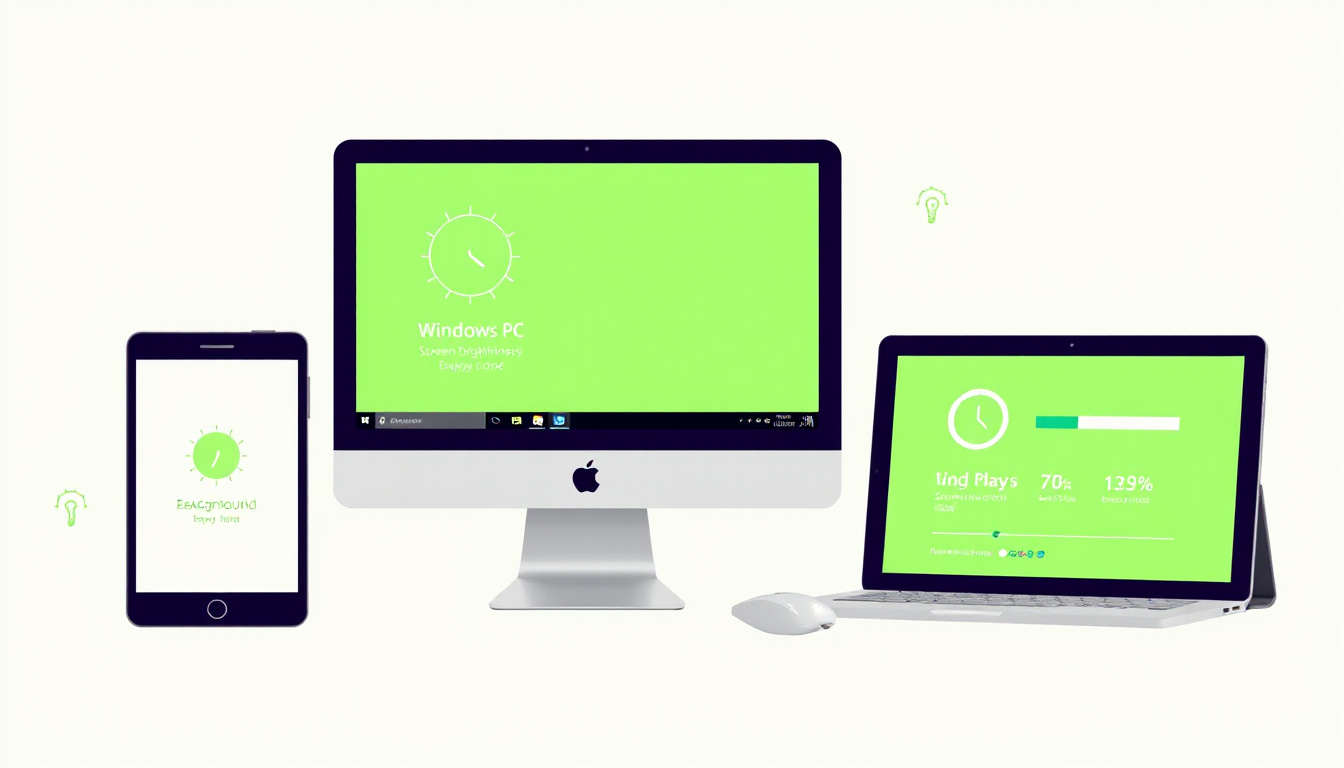
Reduced Display Brightness: Screen brightness is one of the biggest energy consumers. Energy-saving mode usually dims the screen brightness by a significant degree (often around 30%) to save power, though users may have options to adjust this.
Background App Management: Many apps operating in the background drain battery and use CPU resources. Energy-saving mode restricts unnecessary background activity, allowing only critical or user-specified apps to run. For instance, communication apps like VoIP services often continue running, whereas automatic syncing for some apps like OneNote or OneDrive may pause temporarily.
Limiting System Tasks and Updates: Non-critical system tasks such as certain Windows update downloads, telemetry uploads, and scheduled maintenance operations are deferred or prevented during energy-saving mode to conserve power.
Performance Balance: Instead of setting your device for peak performance, energy-saving mode adjusts the power mode to favor efficiency. However, users sometimes lose the ability to manually change power modes while energy-saving mode is active, indicating that performance is secondary to longevity.
Benefits of Using Energy-Saving Mode
Extended Battery Life: By limiting power-hungry processes and reducing screen brightness, energy-saving mode can significantly increase the amount of time a device operates on battery power.
Improved Device Longevity: Minimizing unnecessary processing not only saves energy but also reduces wear on hardware components, possibly extending the lifespan of your device.
Environmental Impact: Using energy-saving features reduces electricity consumption, contributing to energy conservation efforts and lowering your carbon footprint.
Convenience and Automation: Modern operating systems allow users to set energy-saving mode to trigger automatically at low battery levels or even when plugged in, creating a seamlessly optimized experience without constant manual intervention.
Tailored User Control: Many systems enable users to customize which apps can run during energy-saving mode, balancing energy efficiency and functionality.
How to Enable and Configure Energy-Saving Mode
On Windows 11 (Version 24H2 and Later):
Manual Activation: Toggle energy-saving mode anytime via Quick Settings on the system tray, providing instant control when you need to conserve battery.
Automatic Activation: In Windows Settings, users can define the battery percentage threshold at which the device enters energy-saving mode. There is also an option to run energy-saving mode whenever the device is plugged in, ideal for reducing electricity use in desktops or always-charged laptops.
Customization: Users can allow certain apps to bypass restrictions during energy-saving mode, ensuring critical tools retain functionality.
On Other Devices:
Most smartphones (iOS and Android) offer battery saver or power-saving modes accessible through quick settings or battery management menus.
The specific adjustments and available options may differ depending on the operating system and device model but generally include screen dimming, app activity control, and system resource limitations.
Tips for Maximizing Efficiency with Energy-Saving Mode
Turn it on proactively: Don’t wait for your battery to get critically low. Enabling energy-saving mode early can extend device uptime.
Customize app permissions: Identify which apps you use frequently and ensure they are allowed to operate when energy saver is active.
Combine with other efficiency practices: Reduce screen timeout duration, disable unnecessary notifications, and close unused apps manually to further conserve battery.
Regularly update your device: Power management improvements often come with OS updates, enhancing energy-saving mode effectiveness.
Conclusion
Energy-saving mode is a powerful and often underutilized feature that helps you unlock the potential for longer battery life and more sustainable device use. By automatically managing screen brightness, app activity, and background tasks, it strikes a balance between functionality and efficiency. Whether you are using Windows PCs, smartphones, or tablets, enabling energy-saving mode when available is a smart step toward maximizing your device’s capabilities, saving energy, and supporting environmental responsibility. Embrace energy-saving mode today and enjoy the benefits of optimized device performance and extended usability.
>> Chest Freezer Reviews <<
>> Upright Freezer Reviews <<